LAST FALL, GRAPHISOFT RELEASED ARCHICAD 29, its latest version of one of the AEC industry’s leading BIM authoring tools and its most famous innovator.
In recent years, Graphisoft has poured energy into building out its ecosystem, anchored by two key extensions: its award-winning BIMx mobile, web, and desktop viewing collaboration and viewing application, and its industry-leading BIMcloud technologies, which arrived with great fanfare in 2014. (see: Architosh, “Special Event from Japan: GRAPHISOFT announces new ‘BIMcloud’ for global architectural industry,” 25 Mar 2014)
To be sure, BIMcloud, in particular, was the technology ready for the global pandemic in 2020, and while thousands of Archicad-based architects smoothly adjusted to remote work because their projects were already in the cloud within BIMcloud, many colleagues using other solutions (notably Revit) had a much more difficult transition. Fast-forward from the pandemic years to the present, Graphisoft has further expanded its ecosystem, especially in the MEP space. Its latest addition to this arena is MEP Designer, a purpose-built MEP BIM solution built on the same Archicad core platform.
But what about Archicad itself? This is largely the subject of this feature product review article. So let’s dig into it.

A full-screen view of Archicad 29 with its new Learning Center shown and the AI Assistant (beta) icon in the lower right-hand corner of the main viewport window. The Learning Center gives the user quick access to Product Tours, Quick Tutorials, and Help.
With Archicad 29, Graphisoft delivers a pivotal new AI Assistant (Beta) technology, offering intelligence built into model queries and expert guidance on all things Archicad. One important note: the Hungarian BIM provider says that “Archicad 29 is the centerpiece” of their “Design Intelligence Strategy” and a type of “backbone” for next-generation AI-enabled workflows.
Why AI is Key
If this is the future backbone of the next-generation design-centric experience, then it stands to reason that the AI Assistant (Beta) is a critical technology to understand, and that it is our first step in this review.
To get started, the user can find the new AI Assistant in the lower right corner of the main interface window. Clicking it opens the AI Assistant main window. When you first use it, you must agree to the terms and conditions, and there is an explanation of the terms of use. In short, Graphisoft is the Data Processor (or Processor), and the user is the Data Controller (or Controller). Personal data is used solely to the extent necessary for the query and in accordance with Article 29 of the GDPR. The “processor” (Graphisoft) shall not use the personal data for any purpose other than the one addressed in the AI query.

The AI Assistant window is full-height along the left side of the Navigator palette on the right. The assistant guides you with the types of questions you can ask (see text below). The globe icon in the text prompt box enables queries to access information on the Internet.
Once agreed to, an Archicad 29 user can engage with the AI Assistant (Beta) features, which include things like learning about Archicad, asking about best practices and regulations, filtering your BIM model elements, and creating AI visualizations.
Asking about Archicad
I tested the first type of query, which is about knowing about Archicad, and I was quite satisfied with the initial results. I asked, for example, to help me understand the Navigator in Archicad, a key aspect of the program’s functionality that can initially challenge new users. Because we know Archicad, we could evaluate the results against experience. We were pleased to see it make the key distinction between Viewpoints and Views, for instance.
Asking about Best Practices and Regulations
I tested the AI Assistant and its knowledge of best practices by asking a series of planning questions, first about metal flashing under windows and doors (a question the AI Assistant couldn’t provide any answer to) and next about how far a toilet should be placed relative to a side wall (which it was able to answer correctly refering to ADA regulations). I then asked about the minimum ceiling height above a toilet in the United States, but the AI did not know the answer because the regulations Archicad 29 is using are strictly UK-based. So why are they just UK-based at this beta release stage?

An example of the AI Assistant helping with questions about learning the Navigator.
The answer, says Graphisoft, is to help the LLM better understand the domain and context, and adding more codes and regulations would (or could) increase the risk of hallucinations. If you have ever done code research in early versions of ChatGPT, you may have experienced some hallucinations. Graphisoft is committed to emphasizing safe and reliable AI solutions; hence, the limited use of UK standards today. In the future, the company says, users should be able to upload the most relevant building codes for themselves.
Filtering BIM Model Elements
Perhaps the most exciting and useful AI feature beyond having a learning buddy (over-the-shoulder AI) is what AI can tell you about your BIM model. I ran a quick testing telling the Assistant to highlight all the load-bearing columns. It selected them properly and told me how many of them I had. That immediately suggested to me that perhaps the assistant could do quantification work. However, at this time, it cannot.
I asked, for example, to give me the average height of all the load-bearing columns or the shortest and tallest load-bearing columns. But Archicad’s AI Assistant at this time is only optimized to find BIM model elements and not to provide numerical analysis. Our understanding from feedback from Graphisoft is that LLM’s scan struggle with this kind of numerical analysis, but the company absolutely sees this as a logical next step, and the support of MCP (Anthropic’s model context protocol) will enable the AI Assistant to use tools that humans can use today in Archicad and unlock such possibilities to answer numerical analysis questions.

An example of filtering with the AI Assistant querying the model. Notice how the filtered elements get selected (highlighted in green). Once selected, the user can navigate from 3D views to 2D views to see the filtered elements or orbit around the 3D model to gain different vantage points.
Meanwhile, in my review, I used the AI Assistant to filter for “all doors less than 36 inches wide,” and it found them all and highlighted them in the BIM. I was able to see them in both 3D and 2D plan views, and they remained highlighted as I navigated between them. However, I encountered something unexpected when orbiting after a filter selection in the Assistant.
If I filter for elements and then want to orbit the model, the selected (filtered) elements stop being highlighted upon orbital rotation. To get them highlighted again, I need to click the orbit button in the lower-left corner of the main window. This will deselect the orbit tool and bring back the filtered highlight. Okay, I wasn’t expecting that, but at least I solved it and could orbit the model to view my AI-filtered elements from different perspectives.
How Good for Beta?
For a beta status technology, Archicad 29’s AI Assistant is valuable, especially if you are new to learning Archicad. I feel this feature set will greatly aid your ability to master learning the program, and even if you have some prior experience or are an infrequent user (like we are, in general, for many of the applications we review), the AI Assistant provides excellent support.
As for filtering, we think this is a good start, but look forward to more advanced capabilities, especially the ability to automate workflows once Graphisoft implements MCP (model context protocol), an open-source standard created by Anthropic that sister company Bluebeam showed off last fall at its user conference in Washington, D.C. (see: Architosh, “Bluebeam Rebounds: The Comeback of Construction’s Original Digital Rebel,” 20 Oct 2025)
AI Visualizer 2.0
So version 29 introduces the 2.0 release of AI Visualizer, an AI visualization technology that originated at Graphisoft and is shared AI technology across other Nemetschek brands. This technology is now potentially co-developed by the Nemetschek Group’s Germany-based AI hub, which has at least one staff member assigned to it from multiple daughter companies, including Graphisoft’s sibling rivals. We are speculating here.
We didn’t test this feature set directly, but let’s summarize what AI Visualizer 2.0 does, then move on to the items we looked at in detail. The big new update to this AI technology is an interface with more detailed settings. All of this is designed to give the architect greater control, which is the difficult nature of using generative AI technology.
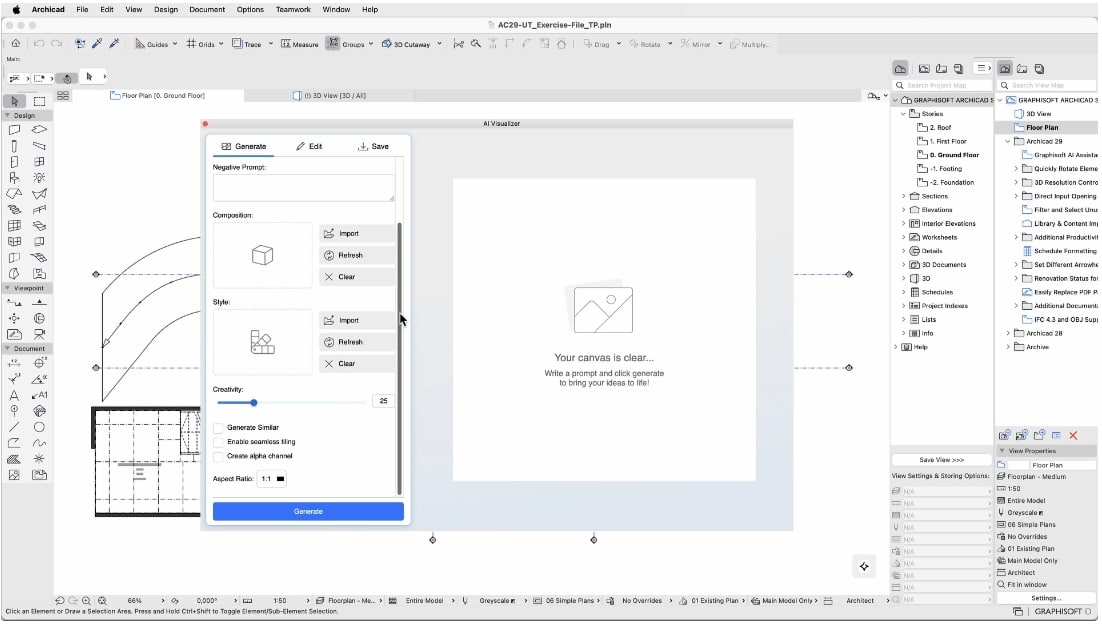
The interface for AI Visualizer 2.0. New capabilities and controls enable the architect or designer to direct the generative AI technology closer to intentions.
The user can upload images, such as photo boards of actual materials, to use in the visualization, along with composition imagery, such as a hand-drawn perspective sketch of the view they like. The “creativity” slider is there to give the architect less or more control. If you want more restrictions on the AI’s creativity, you lower the slider. If the AI Visualizer creates items in your image you don’t want, a paintbrush tool gives you the ability to delete them. Or, alternatively, use the paintbrush tool to highlight and enhance areas of the image.
AI Visualizer 2.0 can also generate textures and objects for your scene, in addition to rendering image compositions. You can create seamless textures from text prompts or upload pictures. These updates to AI Visualizer streamline image creation and automate the generation of useful objects and textures, saving architects and interior designers a ton of time.
Productivity Improvements
New Rotation Tools
While the new rotation functionalities seem trivial, they have more value than they first appear to have. For example, they also use section elements, so you have a faster and easier way to change a building section’s direction than previous methods. That will please existing users. And you can also rotate elements in the same way in 3D views, like a car in a driveway. While there has always been a good rotation tool, the new rotation shortcuts are simply faster and easier to implement for basic rotations.
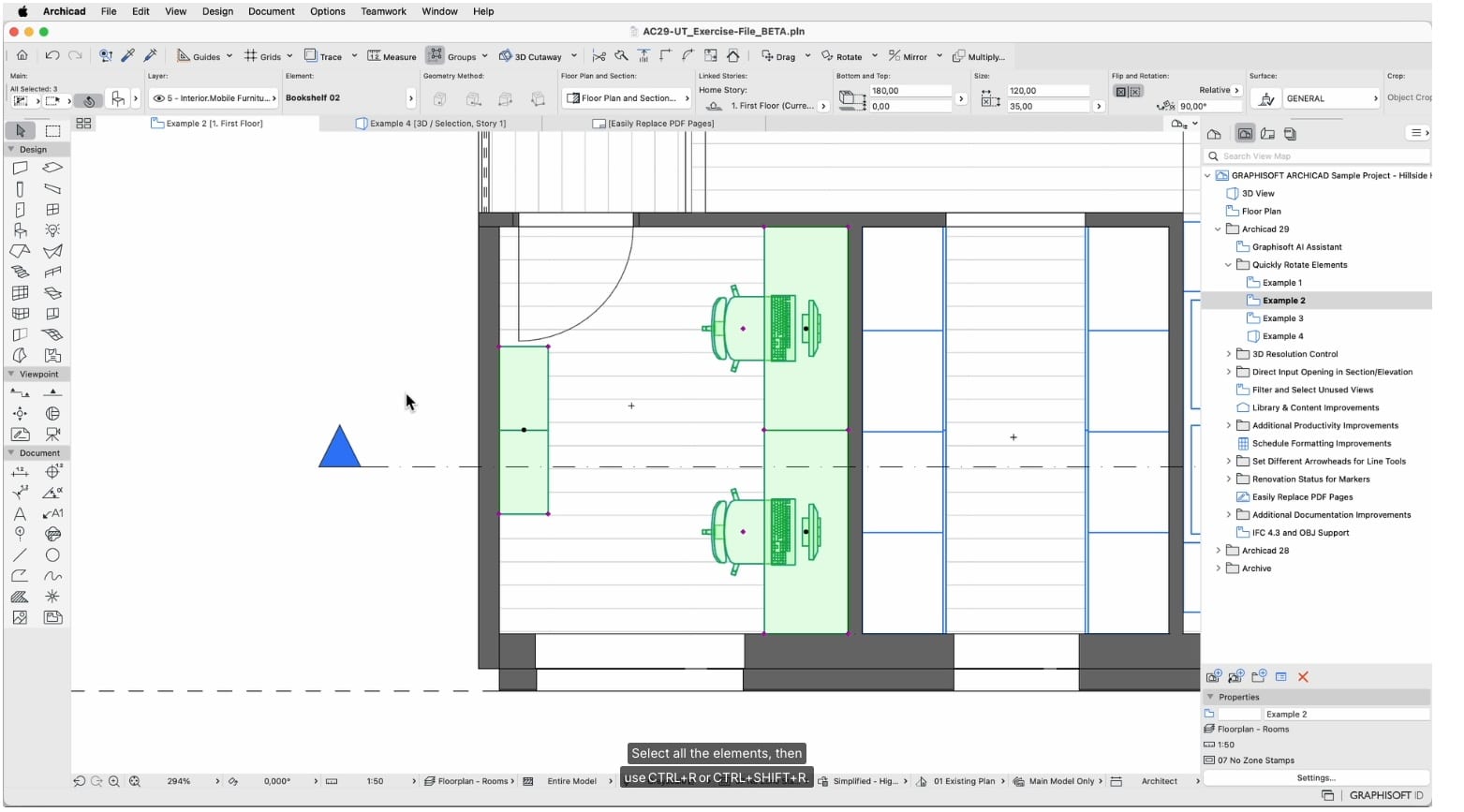
The new rotation tool is a simple new feature, but sure to please existing users.
Finally, note that the rotation tools work on layouts, so you can quickly change elements placed directly on them. This may be more rarely used, but it is valuable.
Direct Input Opening in Section and Elevation
The new ability to input openings in section and elevation views is another feature that long-time Archicad users will find quite useful and an expanded improvement on cutting openings in target elements compared to previous methods, including the method of using an “operator” object like a morph or slab and then performing a subtraction to cut the target element.
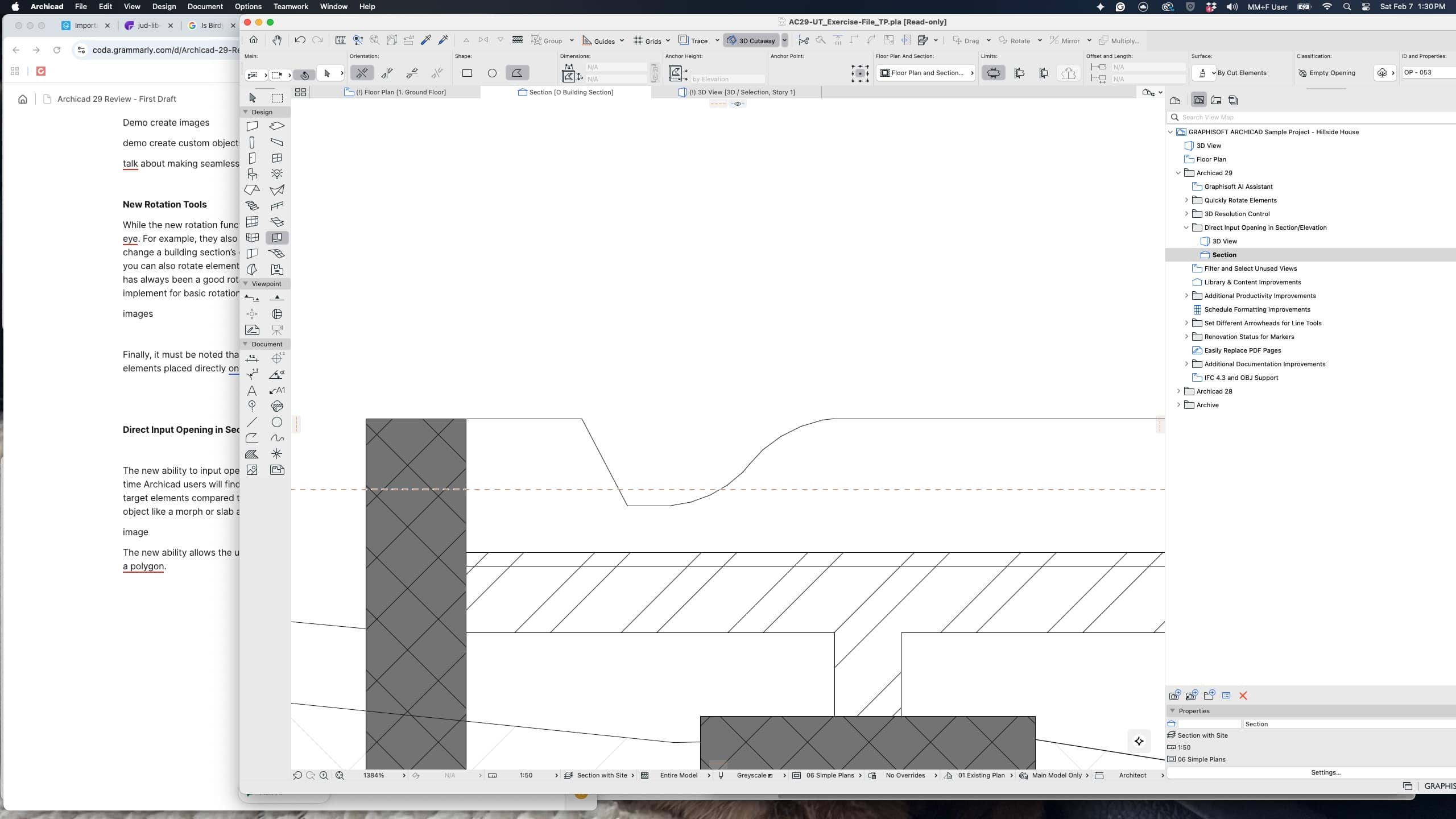
A complex shape drawn in elevation will form the opening.
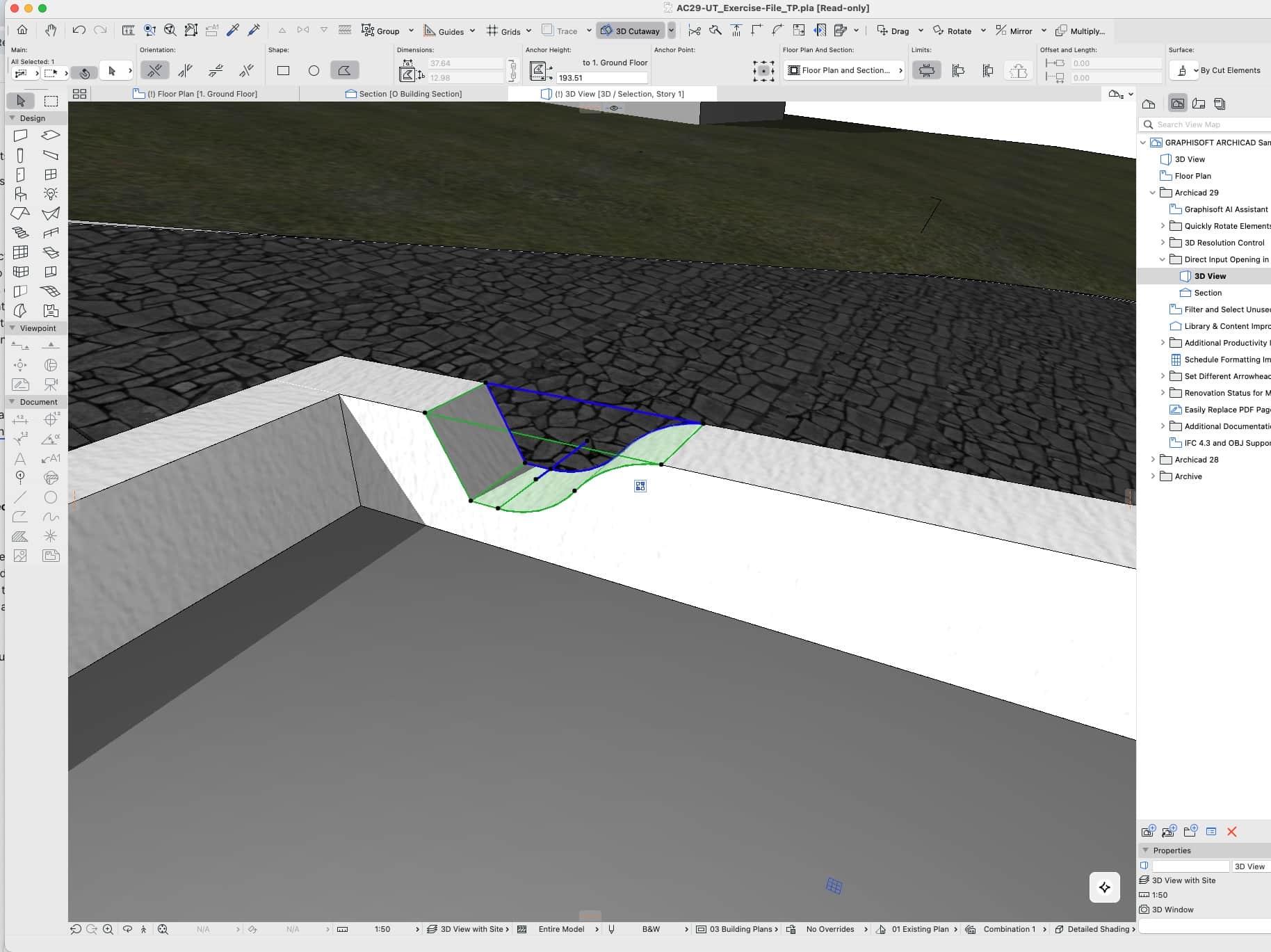
The complex-shaped opening is now shown in a 3D view.
The new ability allows the user to use a rectangular or circular shape or a polygon for just about any shape (see images below). In the 3D view, users can also further manipulate these opening shapes by sliding them along surfaces like the garden wall in this example, including with numerical accuracy via the pet palette. The depth of an opening is also numerically controlled with the new tools. And you can edit dimensions of openings when they are selected, like making these round holes fit for step lighting bigger or smaller. (see image below).
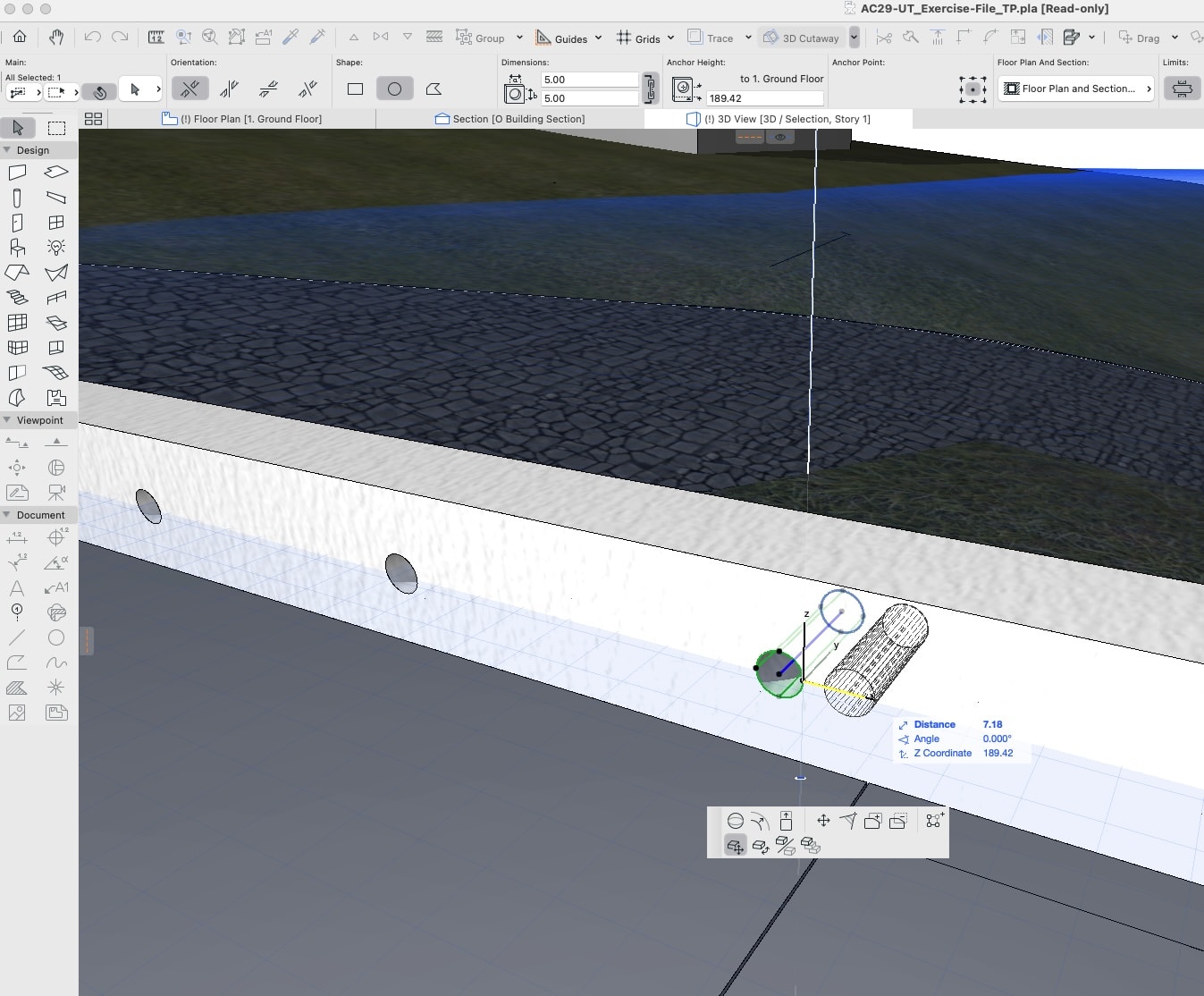
This round opening for a step light can be easily adjusted in size or position using the features of the Pet Palette.
Moreover, when you migrate older Archicad files to version 29, openings made via previous methods will gain new editing powers. In other words, it changes how you can interact with them.
Filter and Select Unused Views
So anyone who has used Archicad for any length of time knows the beauty and power of the Navigator. However, they also know its pain points, and there have always been a few. One of those prior to Archicad 29 is the ability to determine whether a view has never been used in a layout or publisher set. For those unfamiliar with Archicad, layouts are where you construct your drawing sheets. You place views on layouts to construct sheets, so if you have views that have not been placed onto sheets, you may want to now delete them if they serve no other purpose.
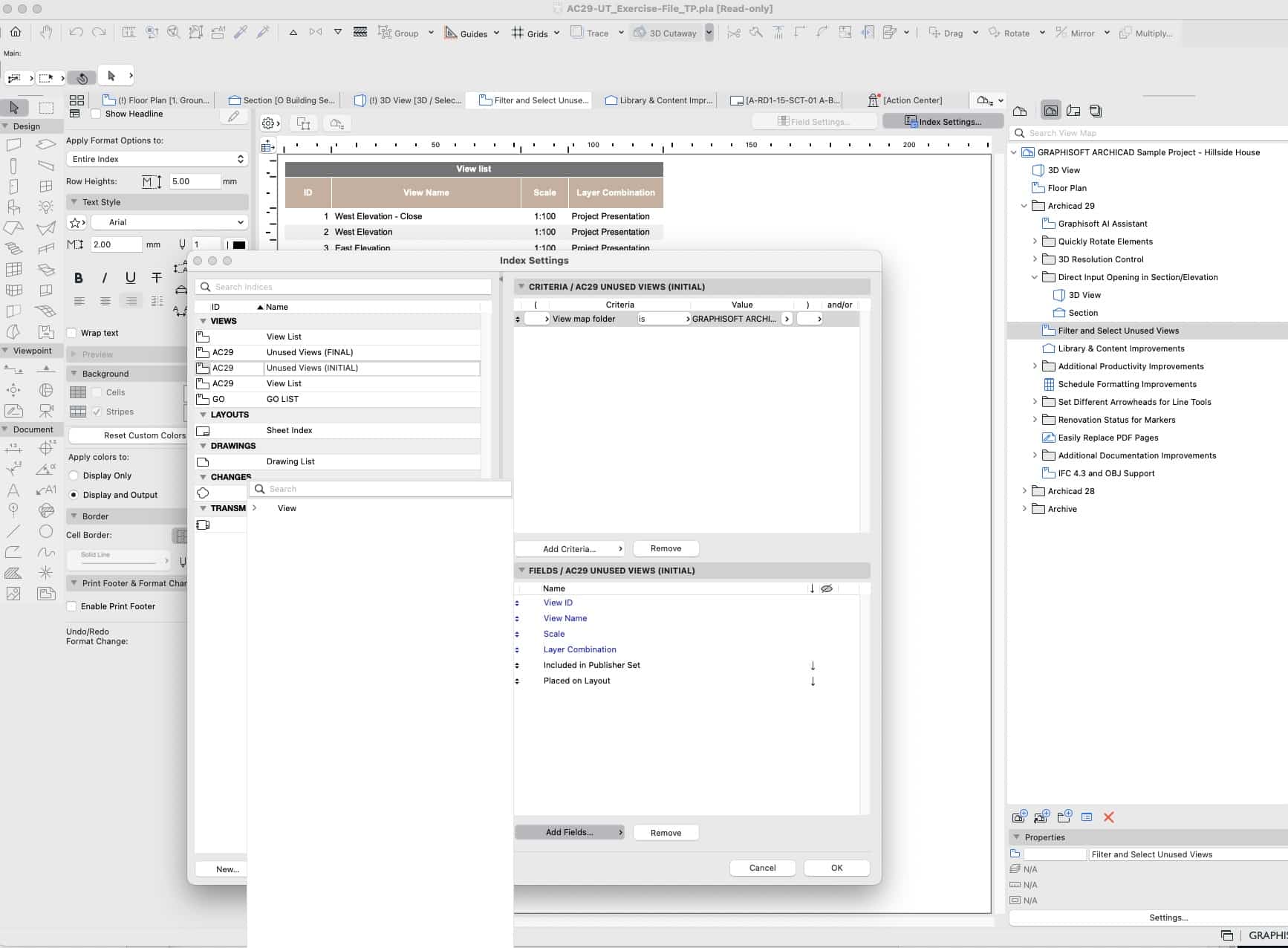
Finding unused views or views not placed on layouts is the first step in helping to lighten the Navigator’s content lists and streamline workflows. This image shows the setup process for the filtering process.
However, you must first find these unused views. That is where the filtering features come into play. Now, in the Project Map at the bottom, you can find Project Indexes > View List. Click on that get a view similar to the image above. From there, the user can add criteria for filtering via criteria like “Placed on Layout” and such, and generate results. Once the view list is filtered, selecting any row (view) and then clicking on another button (upper left) takes you either to that view or to its location in the saved views in the navigator. Then you can delete it.
So far, these items, which at first seem minor, are actually significant and much appreciated useful feature improvements or feature additions to Archicad.
Library and Content Improvements
New additions and improvements to the Library now happen as they develop, which means this content comes to users far more frequently (in theory) than with major software releases. Users must go to the Download section of the Graphisoft website to see these more frequent Library content updates. A better and faster way is to use the Help menu > Check for Updates, and you end up with the screen below. (see image below).
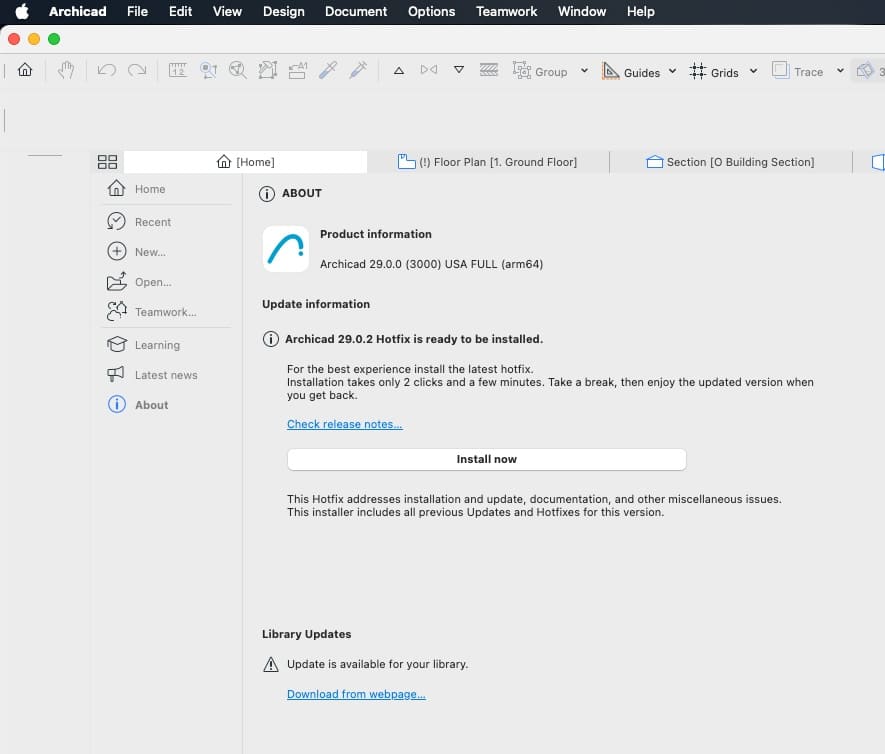
Checking for library updates via the Archicad 29 Help menu interface is faster than the website method.
Notice that it not only tells me there is an Archicad 29.0.2 hotfix available, but below that, Library Updates are also available. Click the download link shown.
The updates to the Library in Archicad 29 are quite extensive, including hundreds of new 2D tree graphics and the plants and outdoor accessories package. There are also new door objects with special door types.
Other Productivity Improvements
Parametric kitchen cabinet features have advanced further, offering greater control for architects and designers. Cabinets can now have up to five drawers.
Archicad 29 also offers new “show contours” in PBR rendering mode. Physically-based rendering was introduced a few versions back, but this new feature with contour support adds visual rendering options for the edges of objects. A bigger number in the settings corresponds to a thicker line at the edges of objects. (see next image)
This setting combines the qualities of physically-based rendering (PBR) with the edge-like qualities of modeling tools like SketchUp.
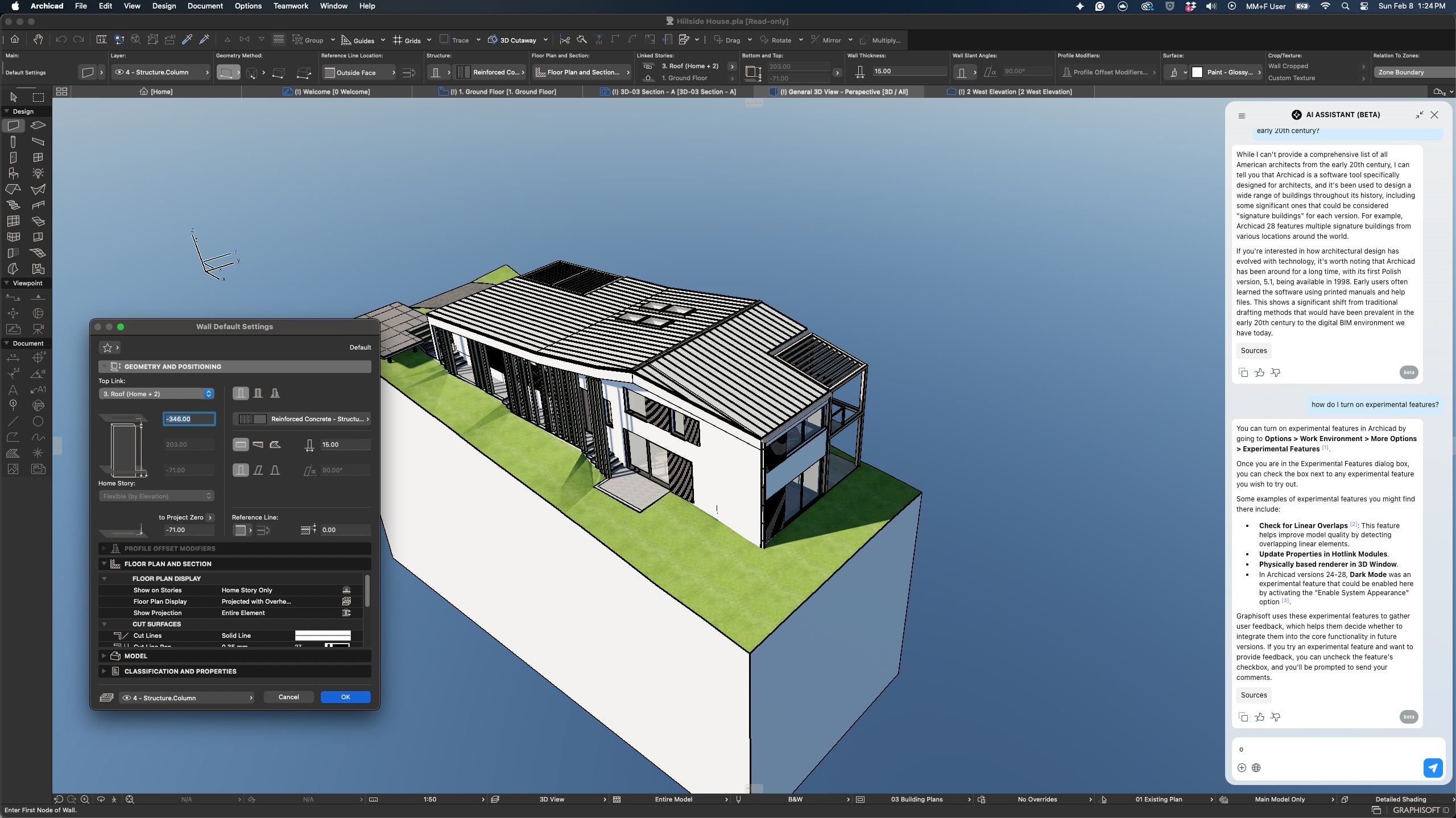
This image shows the new dark mode UI option and the new show contours option under physically-based rendering mode.
Another new feature for macOS users is Dark Mode. This feature is a bit late to the “dark interface” party that began quite a long time ago now, but certain users will surely enjoy it if eye strain is an issue. For Mac users, they can make Dark mode always on, or off, or match their device (computer) so it turns on in the per-dark interface settings for the Mac itself.
Finally, in addition to the AI Assistant’s ability to answer questions and provide user guidance about Archicad, there is a new dedicated Learning Center palette that provides guided product tours and quick tutorials, plus Archicad tips.
Documentation Updates
Archicad 29 features several new features and updates to improve the documentation process. Schedule formatting and renovation status are the two bigger updates in this area, while new arrow types are a minor new feature that experienced users will appreciate.
Schedule Formatting Improvements
The new updates to schedules include customization options for background cell colors, how they are handled based on simple rules such as matching a header cell, plus a range of other customization options for how units, numbers, and custom text are entered into schedules.
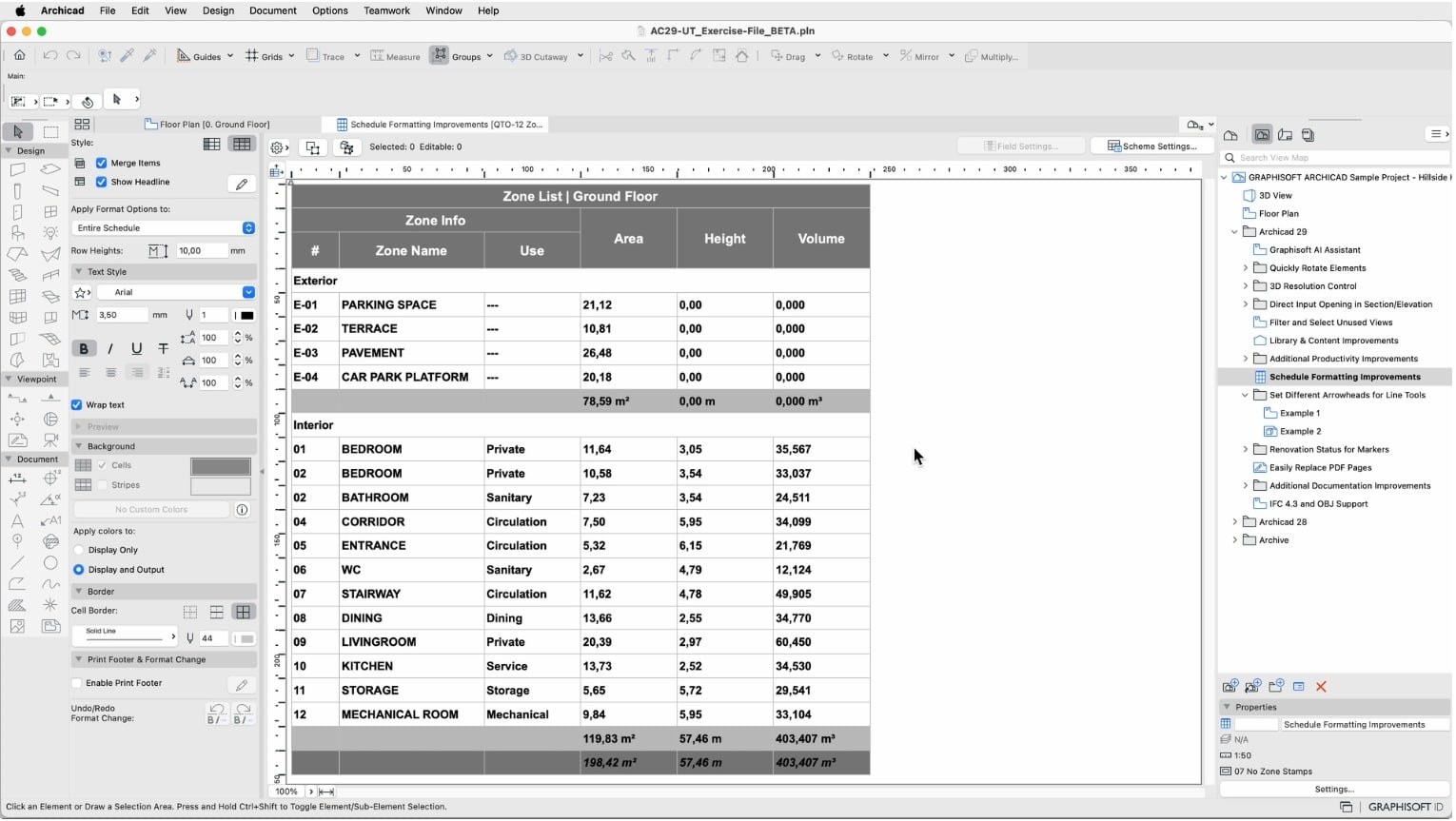
Archicad 29 added substantial new features for schedule formatting.
Additionally, you can control whether color customizations carry over to views within layouts.
Archicad 29 now offers new tools for arrowhead styles, including size and pen. This includes the start and endpoints of lines, arcs, and related shapes, each with its own unique arrowhead. Plus, you can save unique combinations of arrowheads, complete with line thickness and sizes, and save them to your Favorites. These new capabilities will help architects create diagrams, timelines, different types of flow diagrams, charts, and more.
Renovation status for elements in BIM models already exists, but it can now be assigned to markers such as sections, elevations, interior elevations, details, and worksheets. So how would you use this?
So essentially, what this does is enable architects to change the status of markers in previous Archicad projects to “renovation” status. This helps them essentially disappear without having to delete them. You don’t want to delete them as they may still be in existing views.
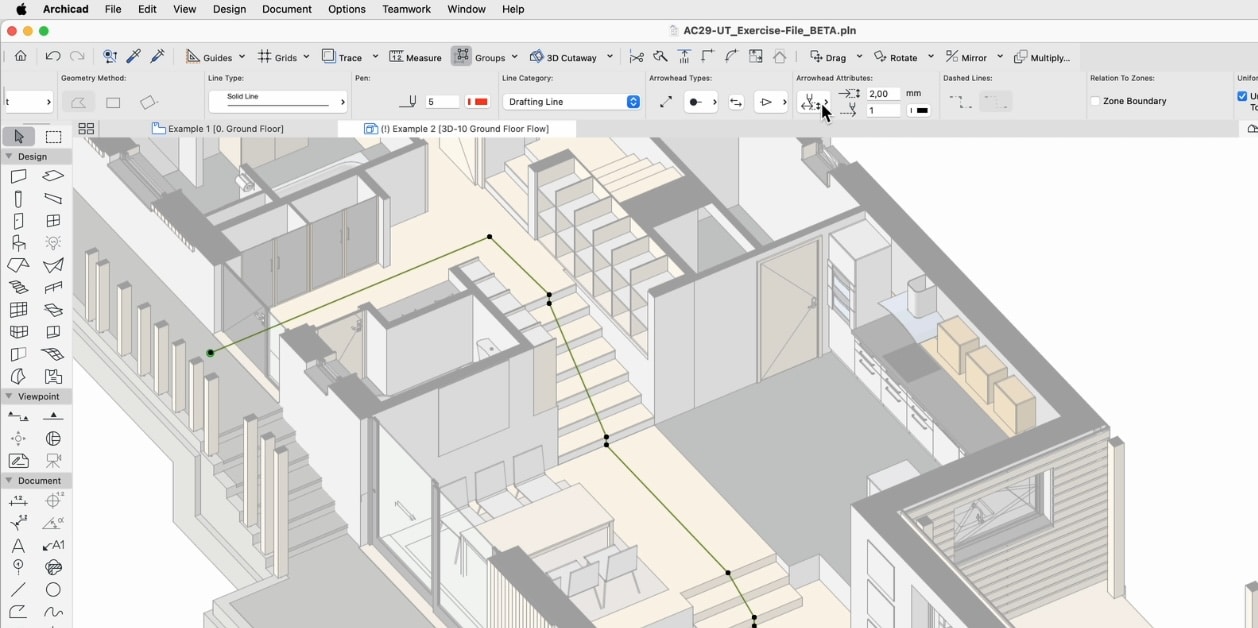
The new arrowhead options are useful for more than one drawing, such as this 3D view. They can also help in chart-making.
A particularly handy new update is the Replace PDF Pages feature. If you have a multi-page PDF document that is incorporated in your layouts, you can easily leverage a single link to that PDF and access any of the multiple pages in the PDF to appear in a view on a layout. This means you can also update a single page and save time by not having to reinsert the file.
Finally, several new features are designed to improve documentation, including more formatting customization for keynotes. You can also place keynotes on the master layout, and if no keynotes appear on a given layout sheet, the keynotes legend does not appear on that sheet.
Collaboration Updates
There are many new updates and features that add to Archicad’s already robust collaboration capabilities. These include IFC 4.3 and OBJ support, BIMx 2025 improvements, and much more. Let’s take a look at some of them.
Archicad has several new or updated “Archicad connections.” BIMPLUS connection is one of them. This is the Nemetschek Group’s cloud-based platform for model-based coordination and collaboration. You can now log in to BIMPLUS directly from Archicad.
There is also a newly updated Bluebeam connection. This brings in an integrated documentation review workflow. There was already a Bluebeam integration with Archicad prior, but that connection technology has been discontinued and replaced by this new connection. The new Bluebeam Connection is entirely recoded.
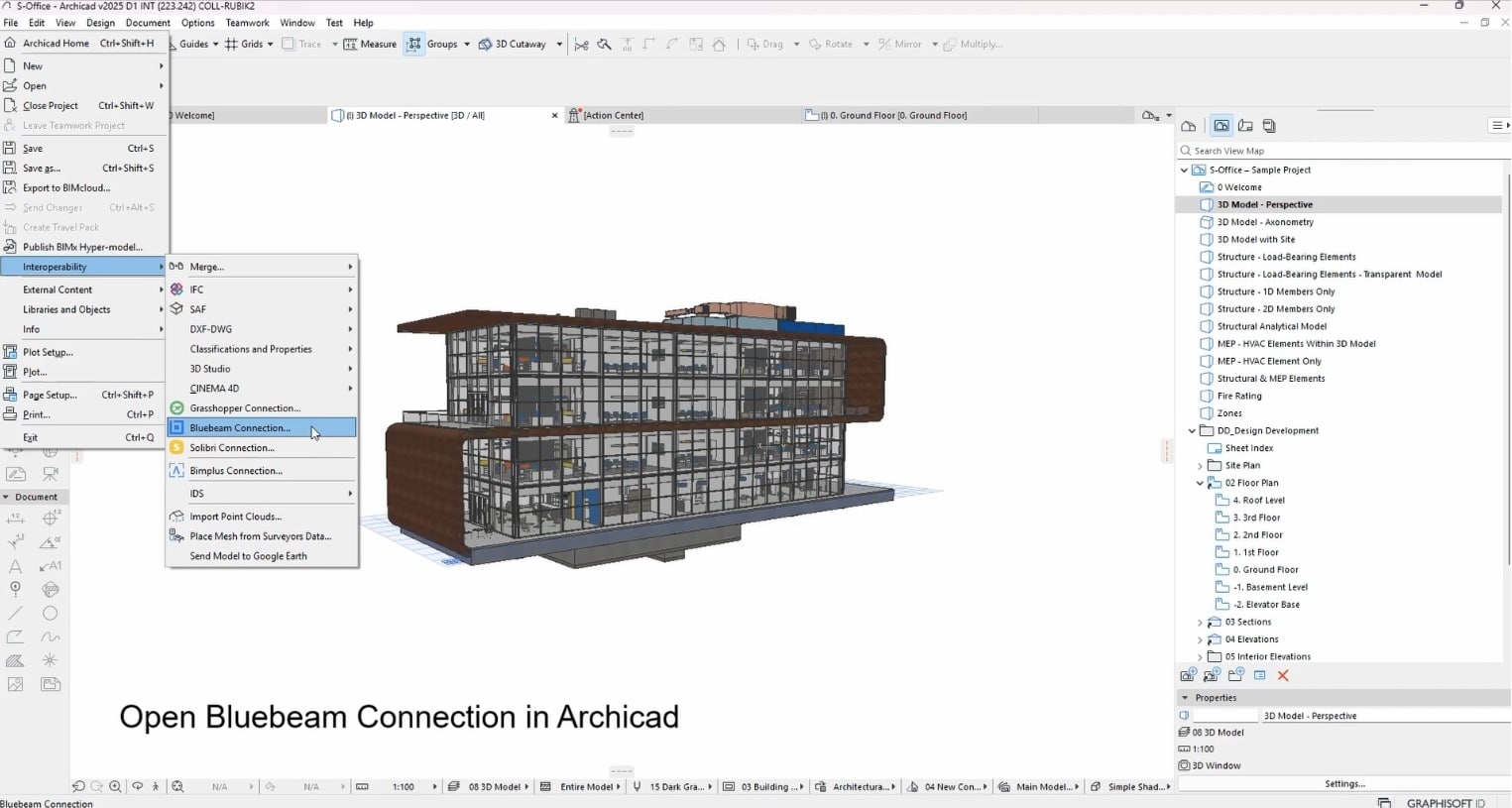
Archicad previously had a connection to sister company Bluebeam, but this version is entirely rewritten and superior.
The new setup integrates with Bluebeam Cloud and supports Bluebeam desktop workflows. Importantly, Bluebeam markup can be imported into Archicad as native Archicad issues. To generate such markup, users can start a Bluebeam Session directly in Archicad 29. Users participating in the Session do not need a license of Bluebeam software, just a user account. Multiple parties can produce markup in the Session, and that data can be piped into Archicad as native Archicad issues, which can then be assigned to team members to resolve.
The adoption of IFC 4.3, the latest industry standard, positions Archicad for a stronger market presence in infrastructure projects, which is partly what IFC 4.3 addresses. This version is not yet widely supported, but it helps future-proof projects and workflows with its integration in version 29.
New “Archicad Project Compare”
This is a new tool that works between versions 25 and newer, making it easier to identify hard-to-notice differences between two project states.
This is a new application that you download and run to prepare migration audits. The package you download contains both the Archicad plugins and the stand-alone Archicad Project Compare application. You need both.
The add-on produces output files that serve as the basis for comparison. This runs on each version of Archicad you use, providing a comparison. Say you were migrating from version 28 to version 29. You install the add-on to both versions of Archicad and run the process to generate output (.pmx) files needed for the comparison. Once the comparison is run, it will be visually apparent whether the content has changed, is faulty, or is missing elements.
Importantly, Graphisoft tells Architosh that while the tool can be used within the same version of Archicad, that is only a bonus workflow. The tool supports migration workflows and is essentially a BIM management tool, not an Archicad utility.
BIMx 2025
BIMx is a critical layer to the Archicad ecosystem, and it is always shocking to learn that some Archicad firms don’t use it.
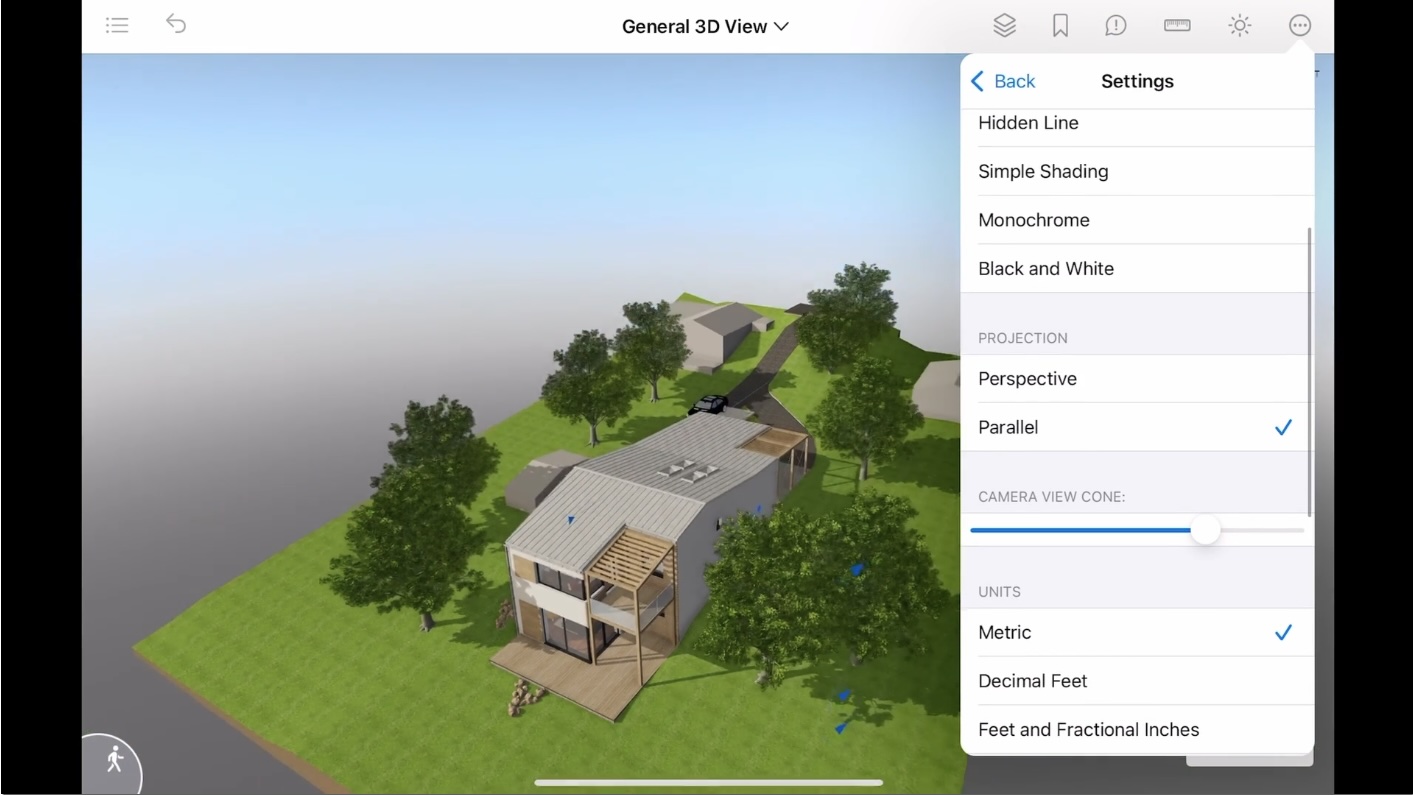
The new BIMx has several new features, including parallel projection for axonometric views like this one.
New this year is the unification of the features of BIMx across all platforms. There are now customizable cut planes, new parallel projection, and animation toggles. This means you can toggle on or off the animation transitions between the BIM model and 2D documents.
MEP Designer
A huge component of Graphisoft’s annual updates is now outside of Archicad itself in the form of various Archicad ecosystem applications. This could be BIMcloud, BIMx, or the new MEP Designer, which is built on the same fundamental engine as Archicad. But again, we really want to just focus this review on Archicad itself. Typically, that is how we review Archicad, even if we cover these ecosystem tools lightly. We have written about MEP Designer before (see: Architosh, “Graphisoft releases Archicad 29 with game-changing tools,” 7 Oct 2025), but the chief take-away is that MEP Designer is a new solution that simplifies BIM adoption for MEP engineers, breaking them away from the limits of 2D CAD workflows and driving deeper integration with architects working in BIM workflows using Archicad.
Being that MEP Designer is built essentially on the Archicad platform, it ships both natively for Mac and Windows, making it the first Mac-based BIM solution for MEP engineers to design and document MEP systems in 3D format with complete IFC 4.3 support to work with other engineering BIM solutions. Chief among its key features is its simplified MEP modeling and built-in collision detection and model checks.
Closing Thoughts
While Archicad 29’s release late last year was a bit lighter update than Graphisoft’s typical annual release, one must factor in a few unusual or background factors. One of those is the programming effort put into MEP Designer. Another aspect that the company has discussed publicly in the “data plumbing” reworking going on behind the scenes to get the data or “I” in BIM set up correctly to service new artificial intelligence (AI) workflows. This is the same kind of foundational programming affecting all legacy (desktop-era) BIM developers, and even newer BIM 2.0 tools that began before the emergence of LLMs and ChatGPT.
We see in version 29 the beta version of the new AI Assistant. This is just the tip of the iceberg of what is coming to AI functionality in Archicad. The Model Context Protocol (MCP) will likely bring major new capabilities to the AI Assistant, not to mention an emphasis on open protocols to avoid fragmented connections to multiple new AI models and instead provide seamless, integrated, diverse data sources securely. All of this is critical to Archicad’s agentic AI foundation, where multi-agent support and task decomposition set up AI workflows that enable complex user requests and break them down into manageable steps by the AI Assistant.
Having shared our thoughts on the AI Assistant above, our other favorite features in the new version 29 update that have nothing to do with AI include key productivity updates such as direct openings in section and elevation views, and filtering for unused views. While neither of these is sexy or massive, they are impactful. The same can be said of the new schedule formatting capabilities and arrowhead types that open up new possibilities.
So should Archicad firms rush to upgrade to this version? Well, that depends. If you are new to Archicad or at an intermediate skill level, the AI Assistant is a powerful tool to help you deepen your understanding and capabilities in Archicad. For all other users, the mix of very practical updates offers workflow streamlining, and it will just depend on their particular present needs.
To learn more, visit Graphisoft’s website and read our summaries below.
Pros — Archicad 29 intros new beta level AI Assistant that delivers solid and practical assistance for using and learning the popular BIM authoring tool; new rotate and opening tools for elevation, and section views will be highly adopted by veteran users; new productivity enhancements and abilities to sort for unused views benefit project management and keep projects streamlined. New dark mode UI for Mac is a bonus for that platform, new updates to BIMx and MEP Designer are excellent updates to the Graphisoft ecosystem, as well as new connections like the BIMPLUS and Bluebeam Connection. The new line contour feature for PBR rendering is especially nice to see in Archicad. AI Visualizer can create seamless textures and objects, offering big time savings.
Cons — None of the new features are poorly implemented, but Archicad 29 is on the smaller size for an annual update, and the coolest new feature (AI Assistant) is technically a beta. Having only UK regulations for the data source felt limiting for market use outside the UK, but future updates will include many more connections.
Advice — The new AI Assistant delivers helpful direction for newcomers to Archicad as well as useful filtering of BIM elements, making version 29 a smart upgrade for less-experienced Archicad users or those just learning the program. Veteran users will appreciate updates that improve the Navigator, enable the creation of openings in elevations and sections, and the new schedule formatting. While a bit lighter than average annual releases, a lot of foundational work for the future has been implemented behind the scenes. New IFC 4×3, BIMPLUS, and a rewritten Bluebeam Connection mostly seal the deal for upgrading to this version on the next new project.
Price — Archicad 29 is available exclusively through a subscription model, and pricing depends on the tier and payment frequency. Options include Archicad Collaborate, which includes BIMcloud and MEP Designer, and is USD 2,840 per year with optional monthly pricing. Archicad Studio is USD 2,414 per year with optional monthly licensing, and while it does not include other components, users can optionally add BIMcloud SaaS at USD 47 per month (annual). Pricing can vary per region, so check specific pricing at your Graphisoft Store. (USA store).
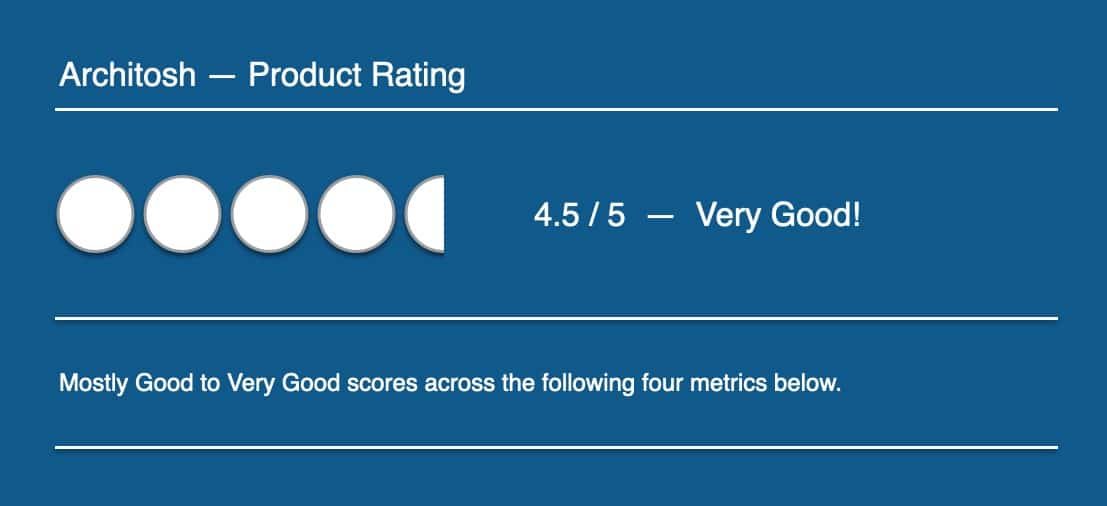
Volume of New Content = 4 — Total list of new features is on the lower side for this annual update compared to historical data, and its major new feature, the AI Assistant, is still in beta.
Quality of Execution = 4.5 — As usual, the quality of the execution of new features and updates is excellent in most cases. However, even in Beta form, the limit on UK-based data sources was disappointing. AI Assistant filtering caused an issue when orbiting, as described in detail above, but a workaround was available. We didn’t encounter any performance or technical issues, but we also did not test Teamwork, where some users have reported hangs.
Underlying Technologies = 4.5 — Archicad 29 supports both Windows and MacOS at advanced levels—meaning it leverages OS-specific technologies to optimize performance across graphics and underlying OS features. Users of the latest version have reported some technical issues, and we are looking forward to Graphisoft squashing these bugs. It is reported that Archicad 29 leverages Dynamic Caching using the M-series chips new memory management to handle larger, more complex geometry faster.
Future Proofing = 4.5 — Graphisoft’s ARM experience on macOS better positions it for a possible future of ARM on Windows. The discussion about MCP (model context protocol) in our report is a bright side, as Anthropic’s open standard is already at work in Bluebeam AI plans and is an exciting direction for multi-agent AI workflows. The Nemetschek Group, in general, seems to have coordinated AI directions at a group level, bringing expertise and insight across a wide family of companies. We, therefore, have high expectations on the selection of underlying technologies and future-proofing AI directions, which is why it is preferable that Archicad 29 shows a cautious and sure-footed approach to the AI Assistant in this release.